iOS Installation (PC required)
Install EZFN on your iOS Device with the help of a PC
Requirements
- A working internet connection
- At least 5GB storage, depending on the Fortnite season
- Knowledge of your iPhone and iCloud account Password
- A PC
- A cable to connect your iDevice to the pc
- Every PC works with this tutorial, even if it doesn’t natively run Fortnite/if it’s bad or old! (As long as it’s running Windows 7 or higher)
Video Tutorial
Getting Started
First of all, you need to install a special version of iTunes and iCloud: The ones from the Microsoft Store will not work.
Make sure to uninstall the Microsoft Store versions if you have them, if you don’t you can proceed.
Download iTunes | Download iCloud
Install both applications following their setup instructions.
Now, Download and install Sideloadly: Download Sideloadly
Sideloading the app
First of all, Connect your iPhone or iPad to your PC using a USB cable.
Then, download the version you wish to install from the list below:
After the .ipa file has been downloaded, open Sideloadly.
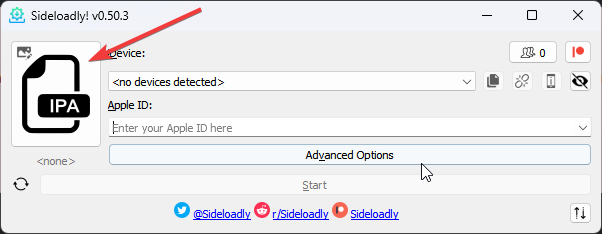
Now, click on the “IPA” icon and select the .ipa file you just downloaded.
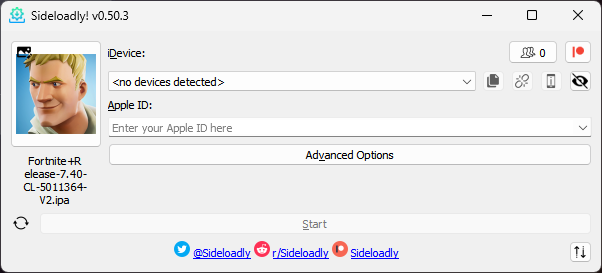
After that, select your device from the list of devices and put your Apple ID email address in the “Apple ID” field.
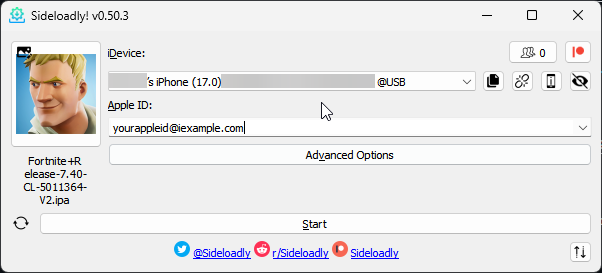
Now, you can click “Start” to start the install process.
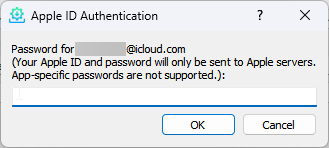
After some seconds, a popup will appear asking for the Apple ID password. Make sure to type it right and press “Ok”
Now, it will ask for a 2FA code. You will get it on your iDevice. Press “Ok” again to continue the install process
After some seconds, an app with the Fortnite icon will appear in your Library. But wait, you’re not done yet!
Enable Developer Mode
Open Settings -> Go to “Privacy & Security” -> Developer Mode -> Switch Developer Mode to “On”.
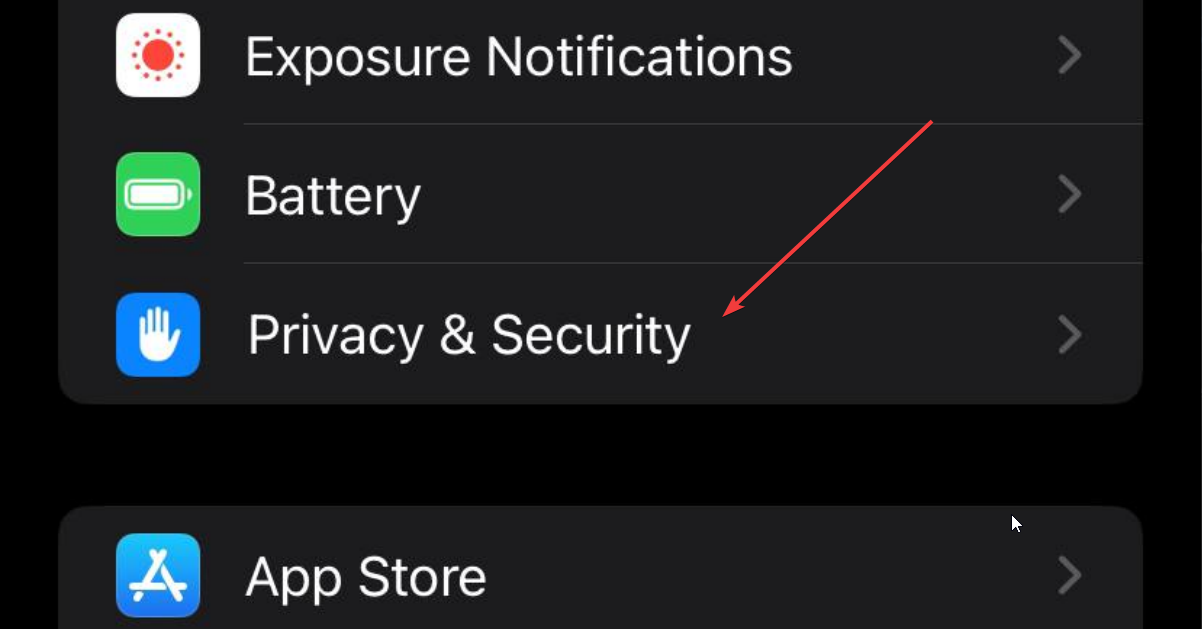
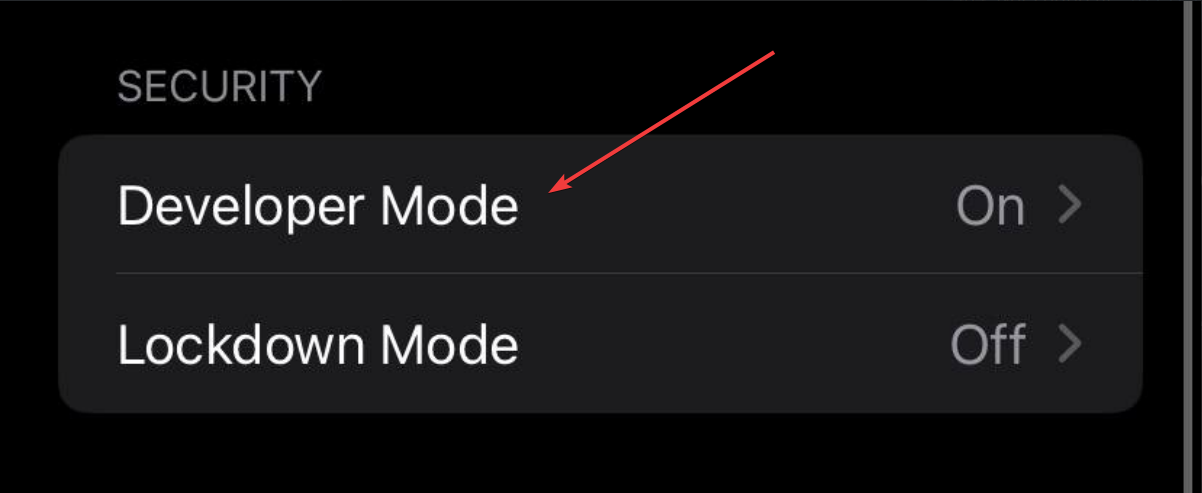
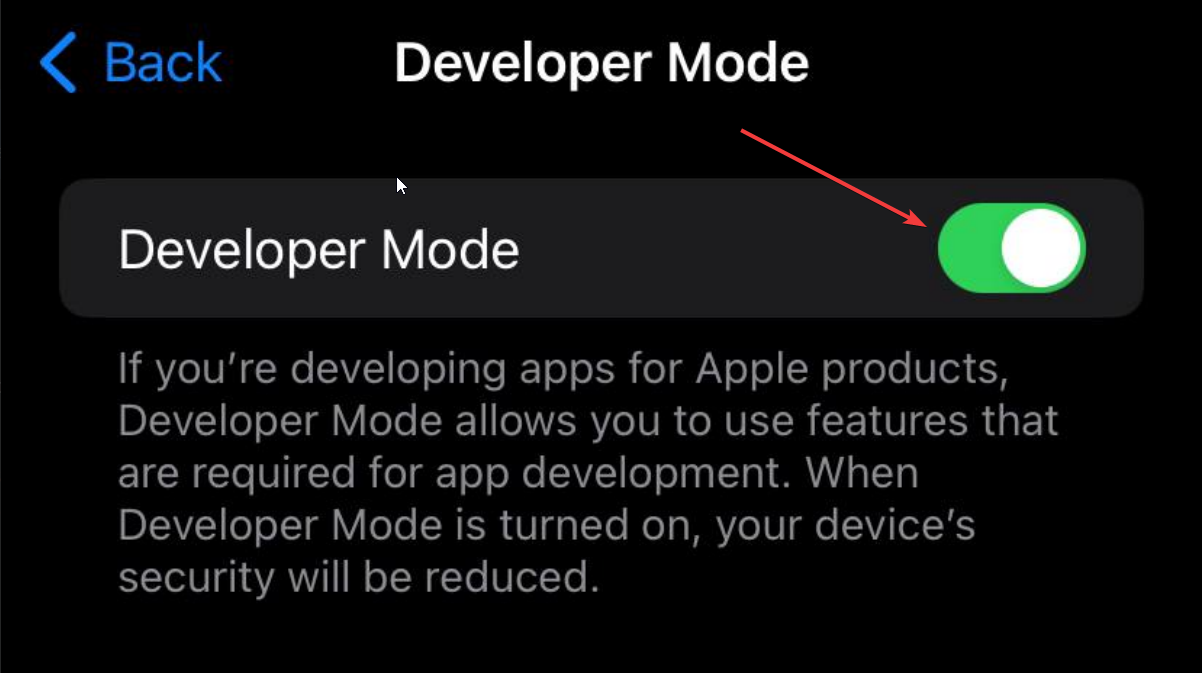
Your phone will prompt you to restart, do that.
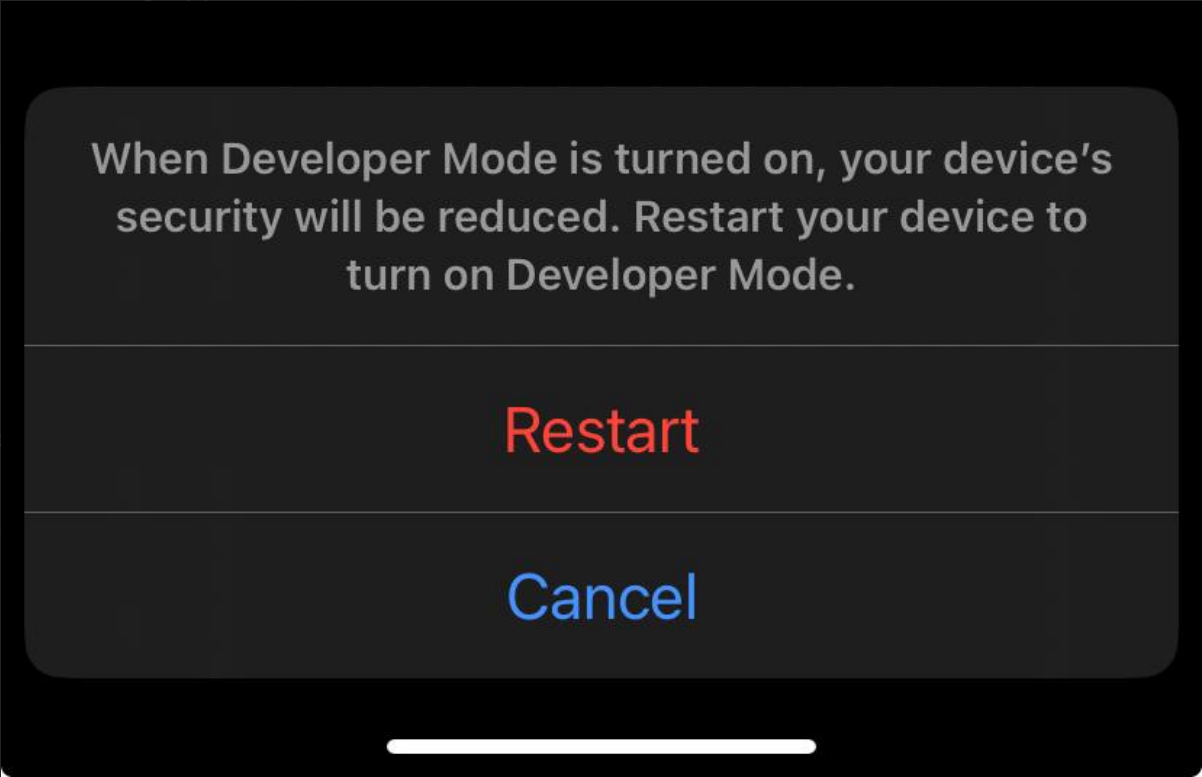
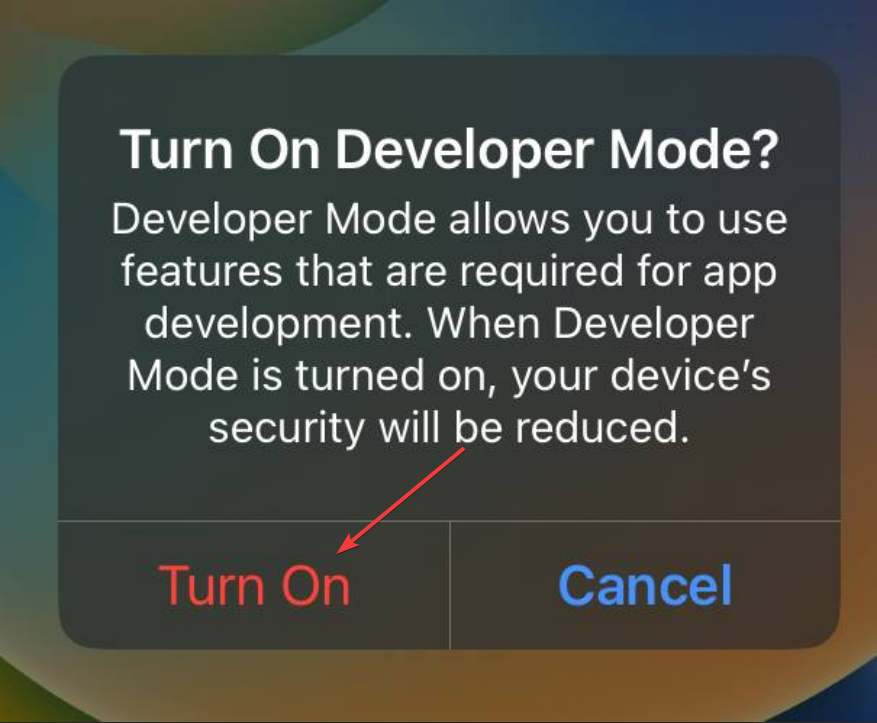
After restarting and unlocking the device, you will get a popup asking if you want to enable Developer Mode. Click on “Enable” and insert your iDevice Password
Trusting the Developer
After restarting, if you try to open the app, it will ask to trust the Developer.
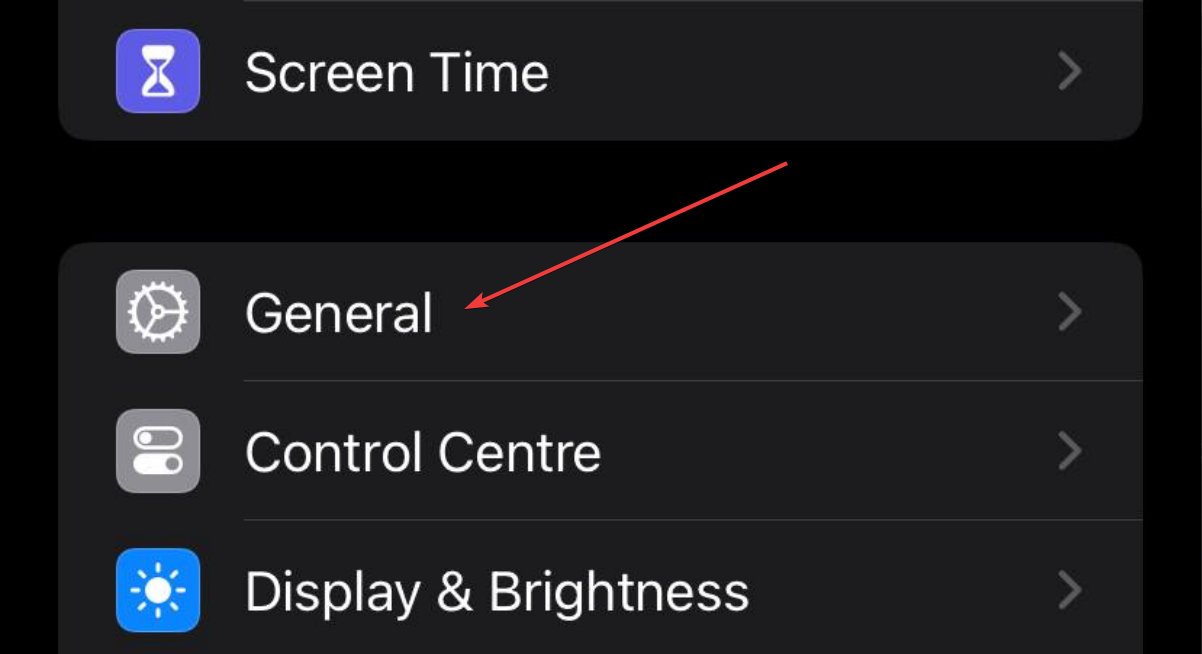
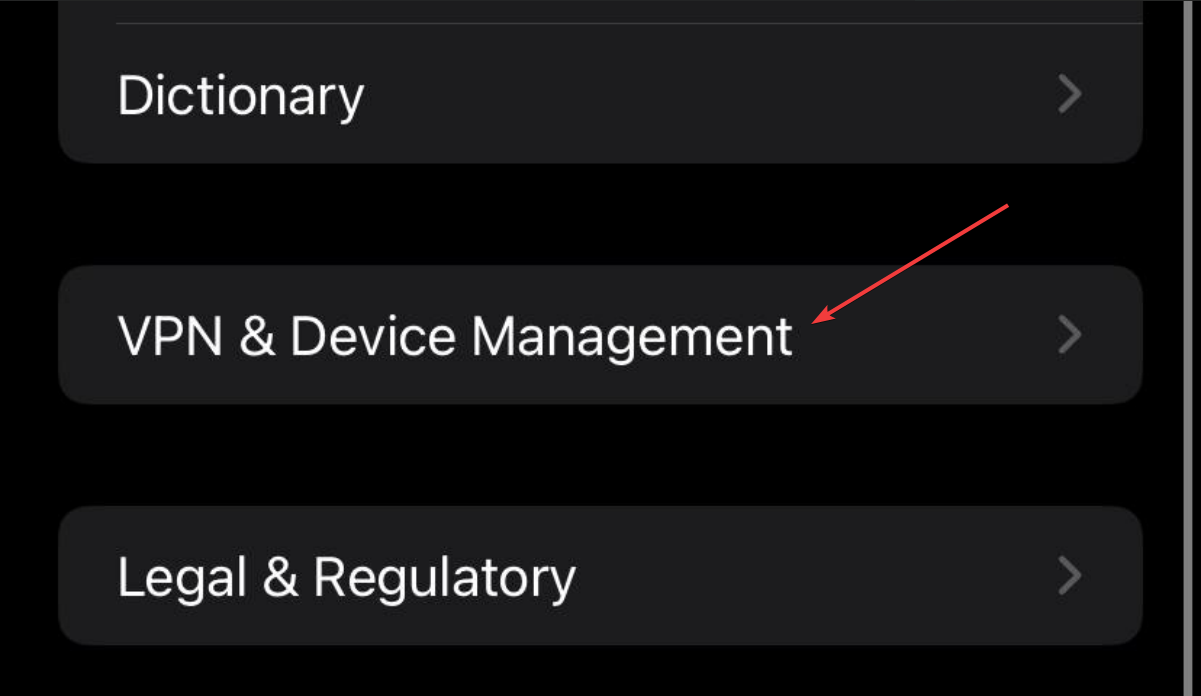
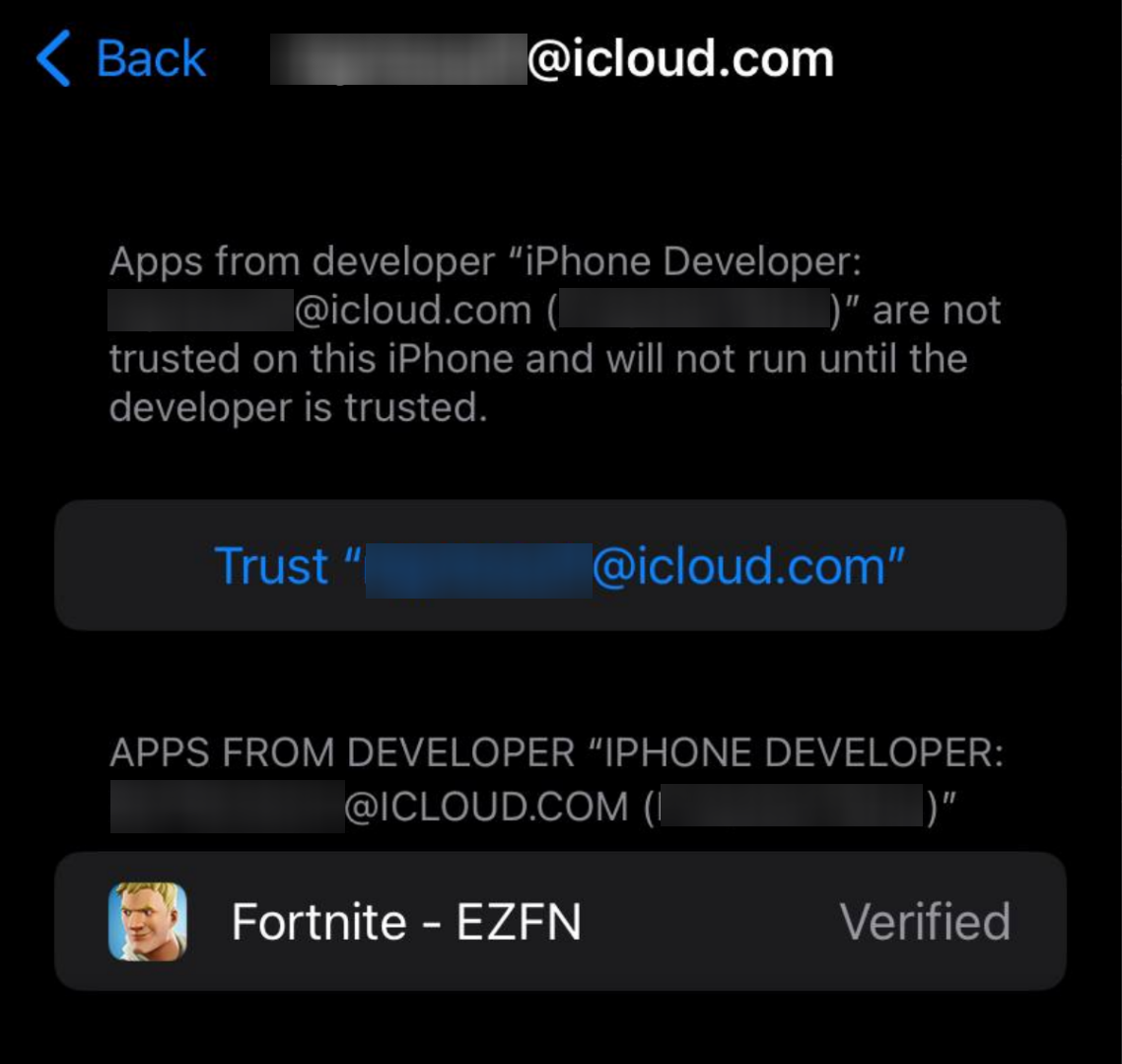
To do that, Open Settings -> Go to “General” -> “VPN & Device Management” and click on the Developer App with the same email as the one you used in sideloadly.
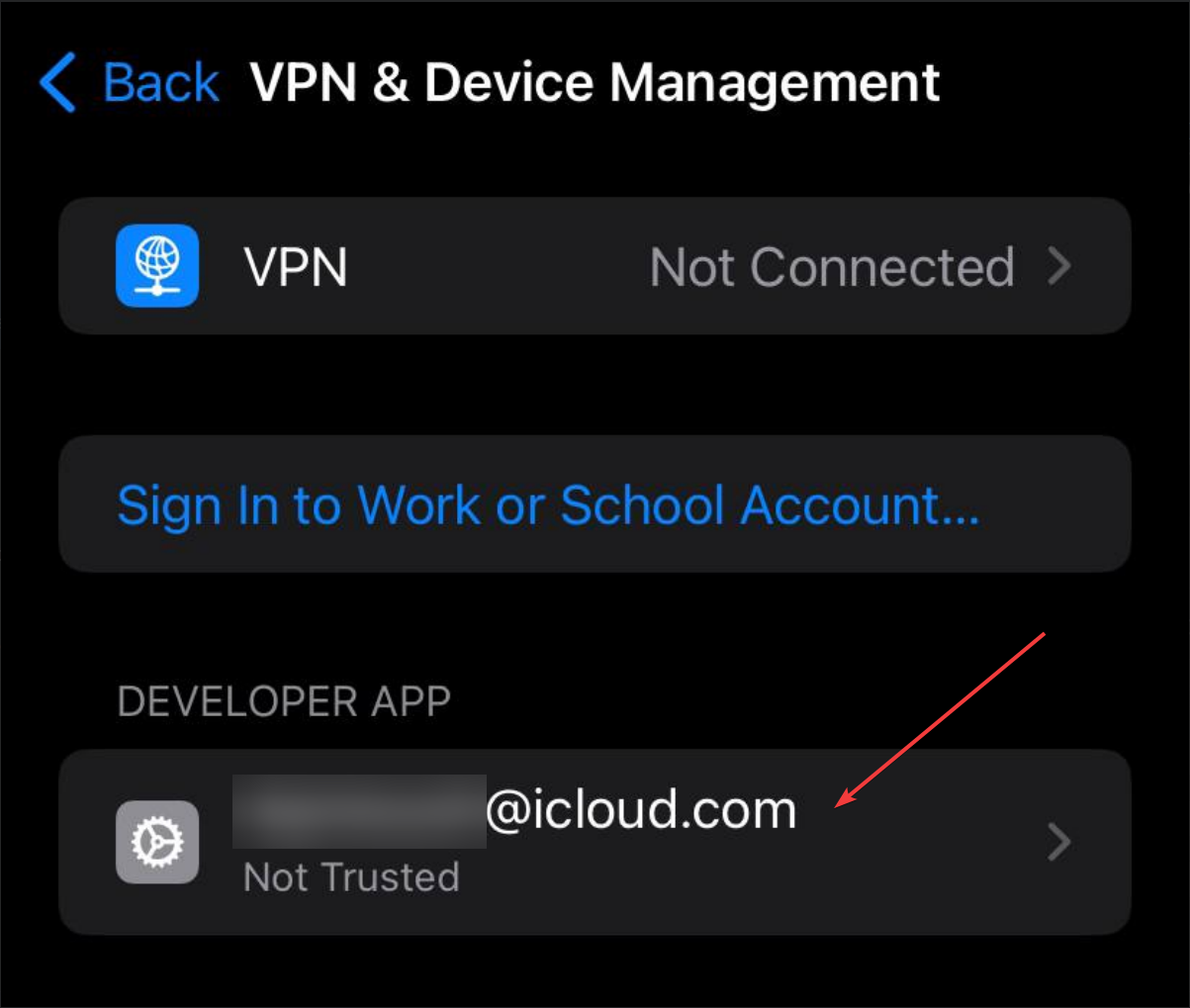
After that, Click “Trust”
Logging in
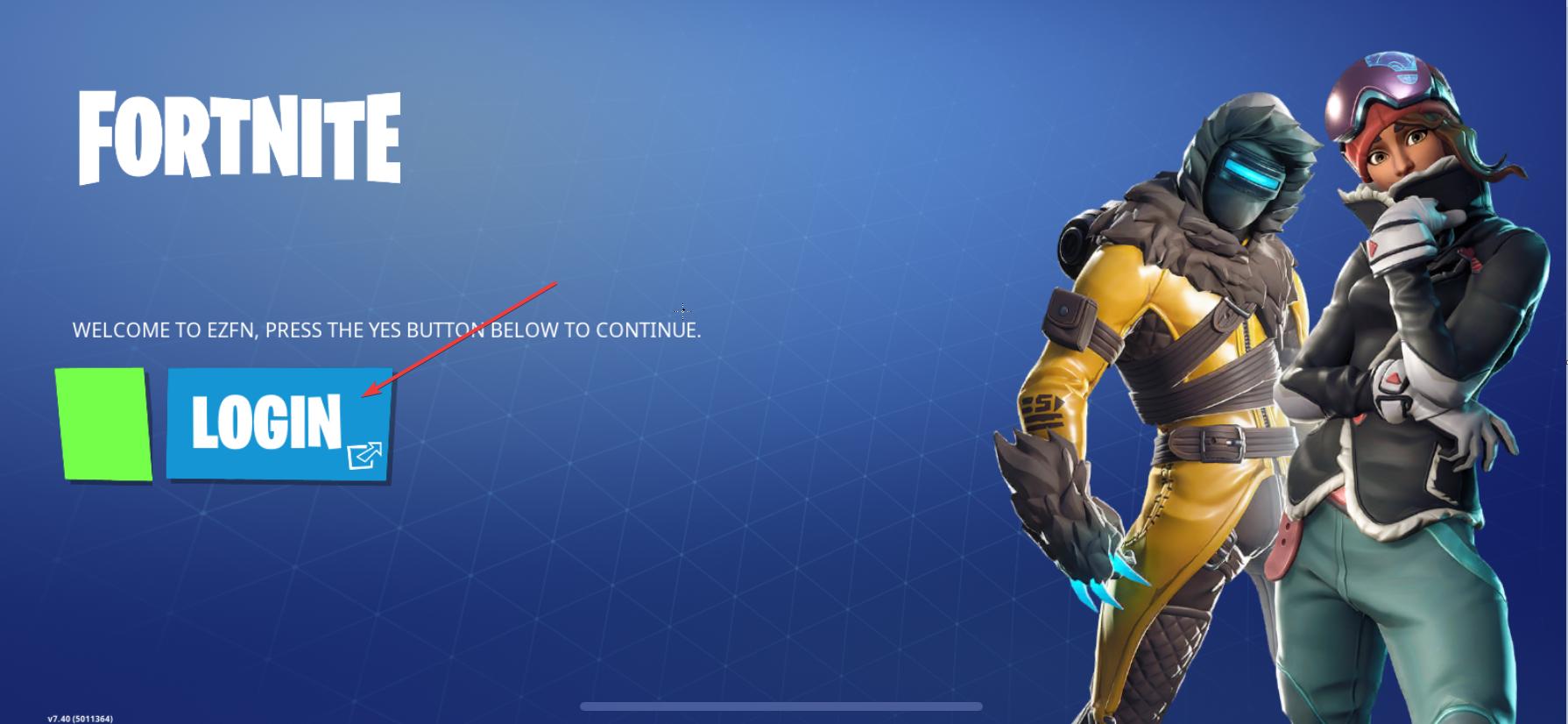
Once the download finishes, the game will ask you to register on login.
Press on the big “LOGIN” button
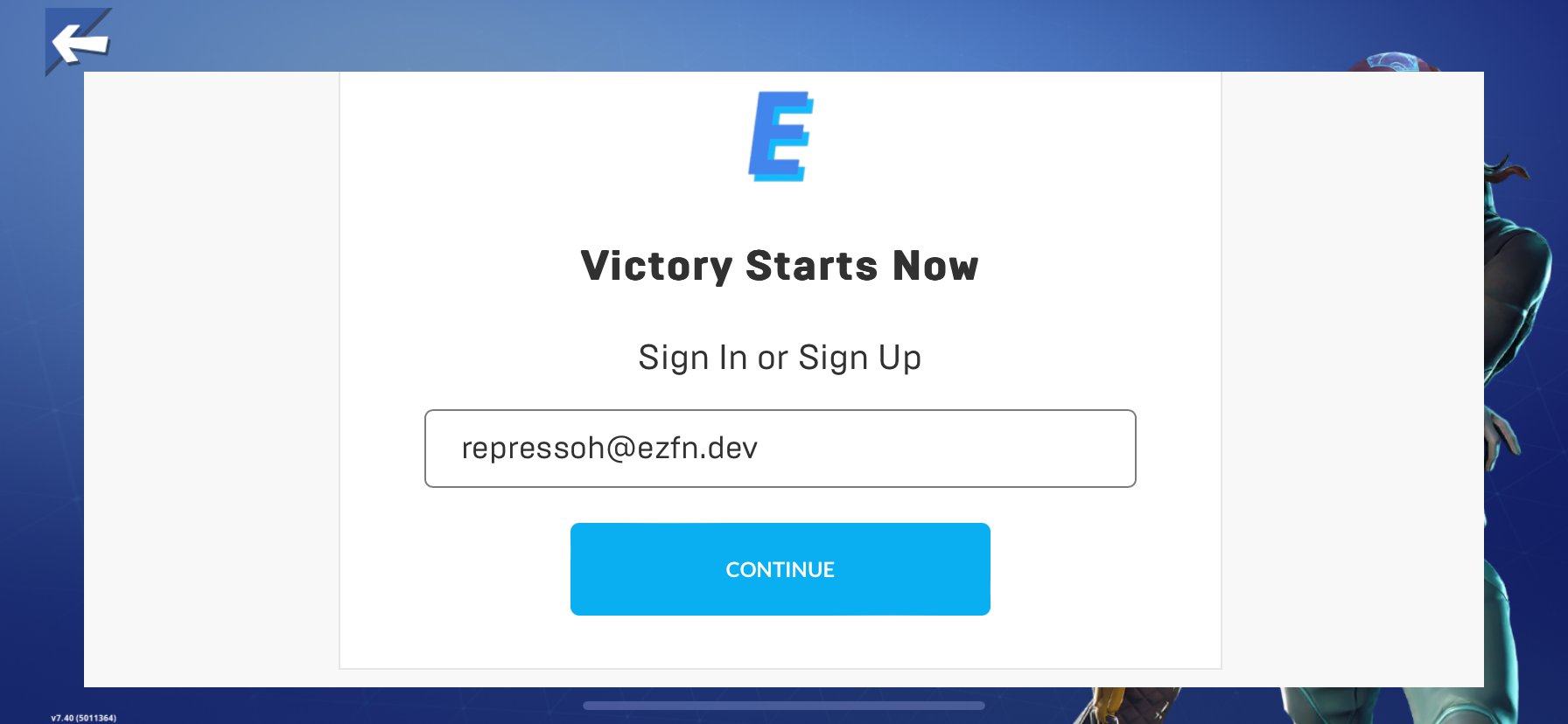
Once the page loads, put your email
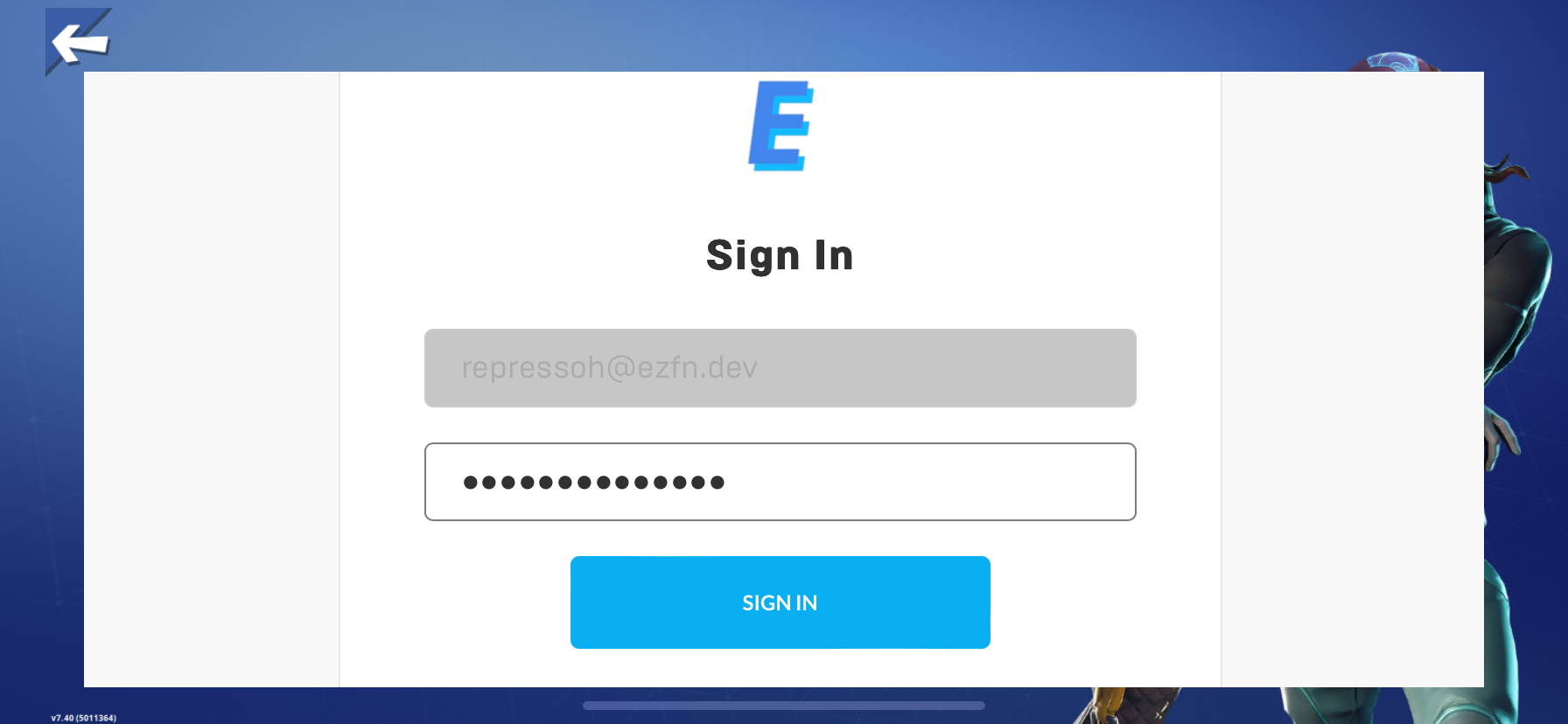
If you already used EZFN in the past, you will be prompted to login.
If you never used EZFN in the past, you will be asked to register
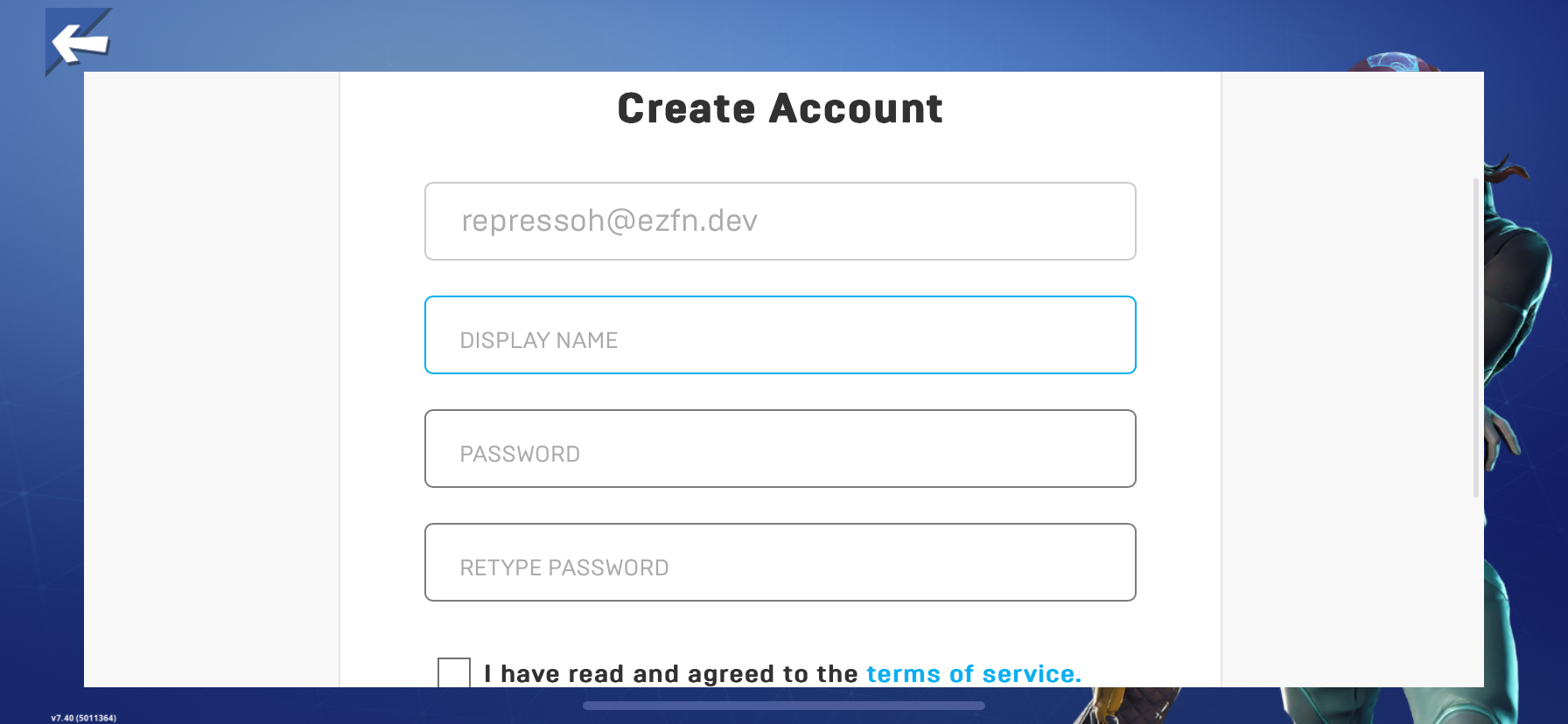
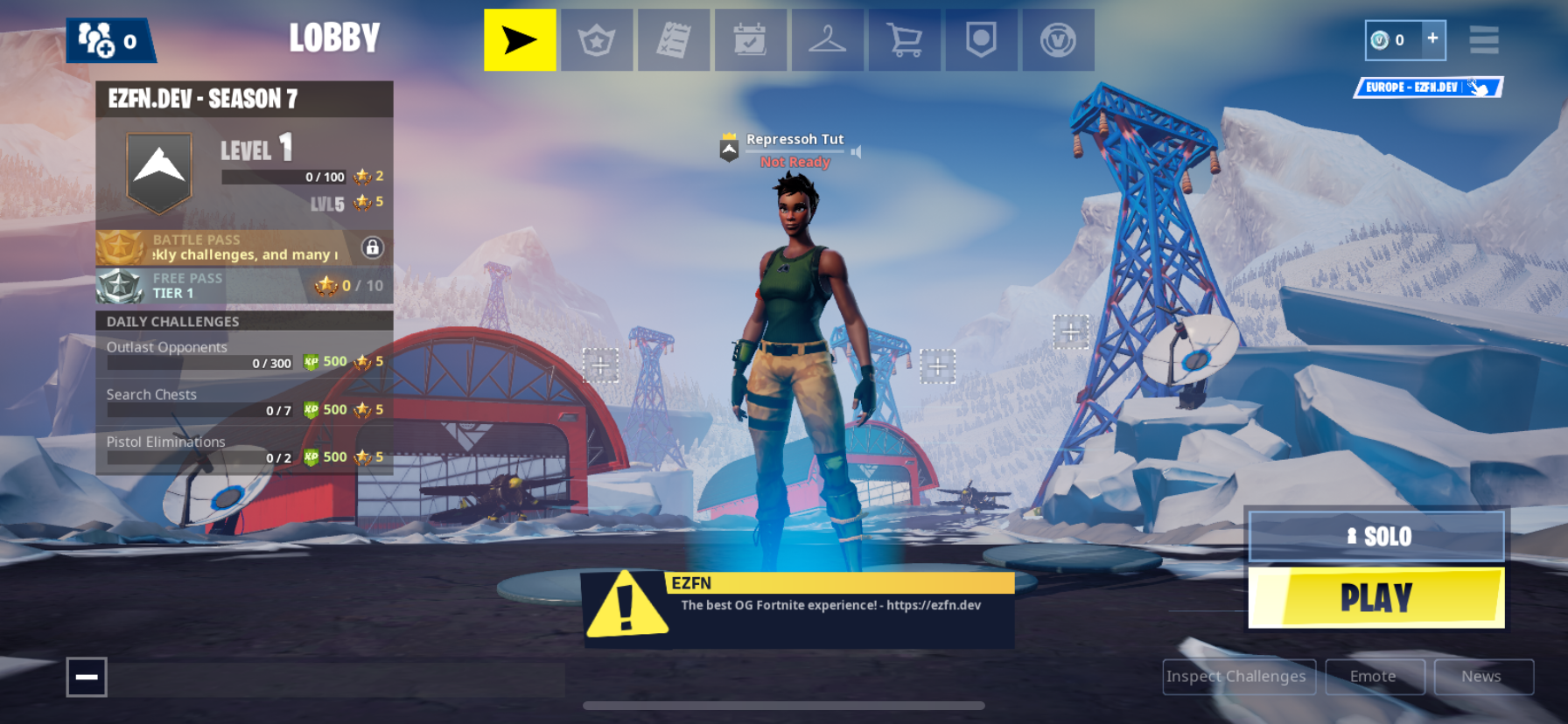
Once that’s done, you will be in the lobby: You did it!
Issues
- After a bit, my download gives me a connection error!
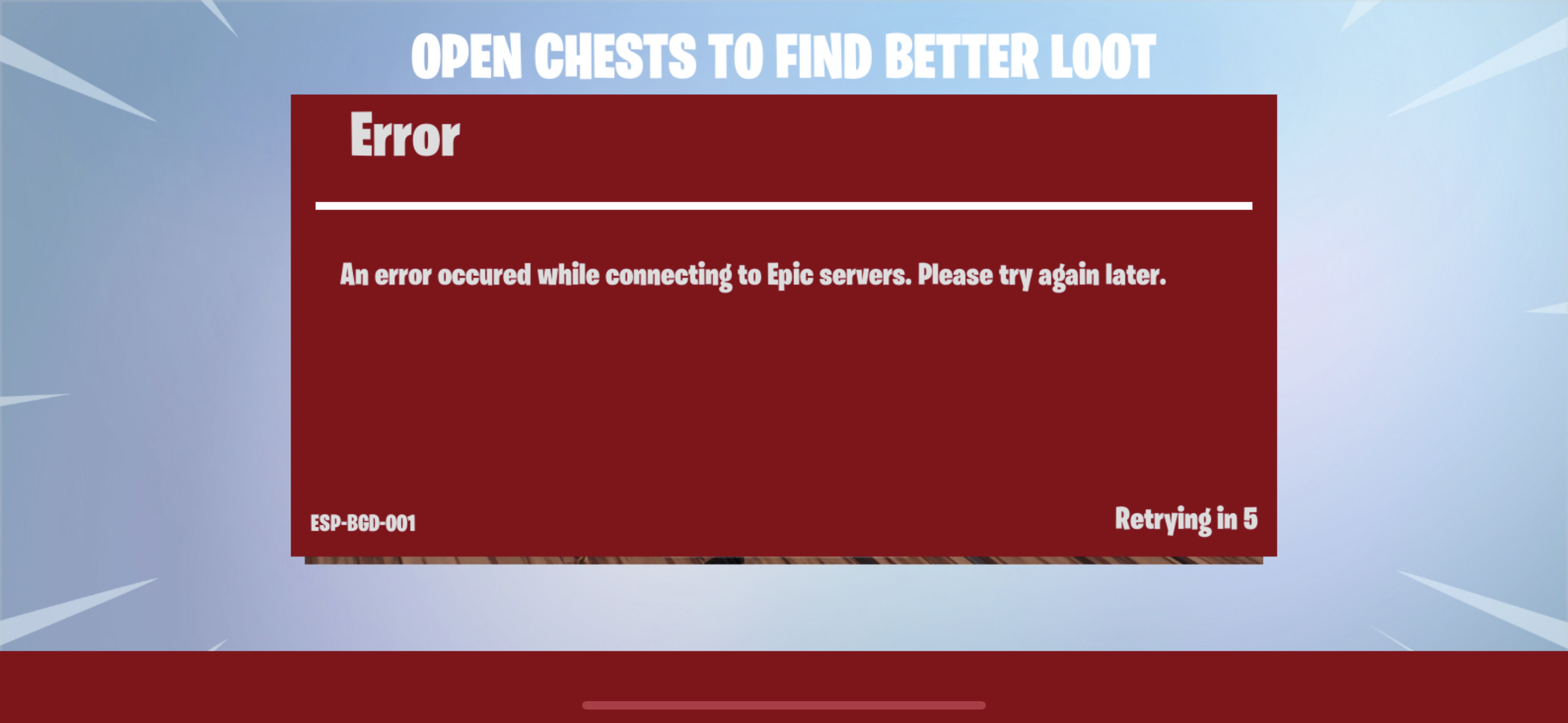
Wait for the download to start again, this time it will work!
- “EZFN - Fortnite” is no longer available
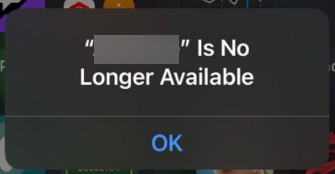
This happens because 7 days passed. Connect your iDevice to your PC and repeat the sideloading process again
Need more help?
Join the Discord Server for assistance.